Dialogue TTS
Dialogue TTS is for game dialogue, audio drama lines, short-video scripts, and multi-character voice production.
Before Creating a Project
- Enable at least one provider.
- Create at least one voice character that passes Quick Test.
- Put all required characters in the same voice bank.
Create a Project
- Open Dialogue TTS from the left navigation.
- Click New Project.
- Enter a project name, such as
Chapter 1 Dialogue. - Select a voice bank.
- Open the project editor.
Add Lines
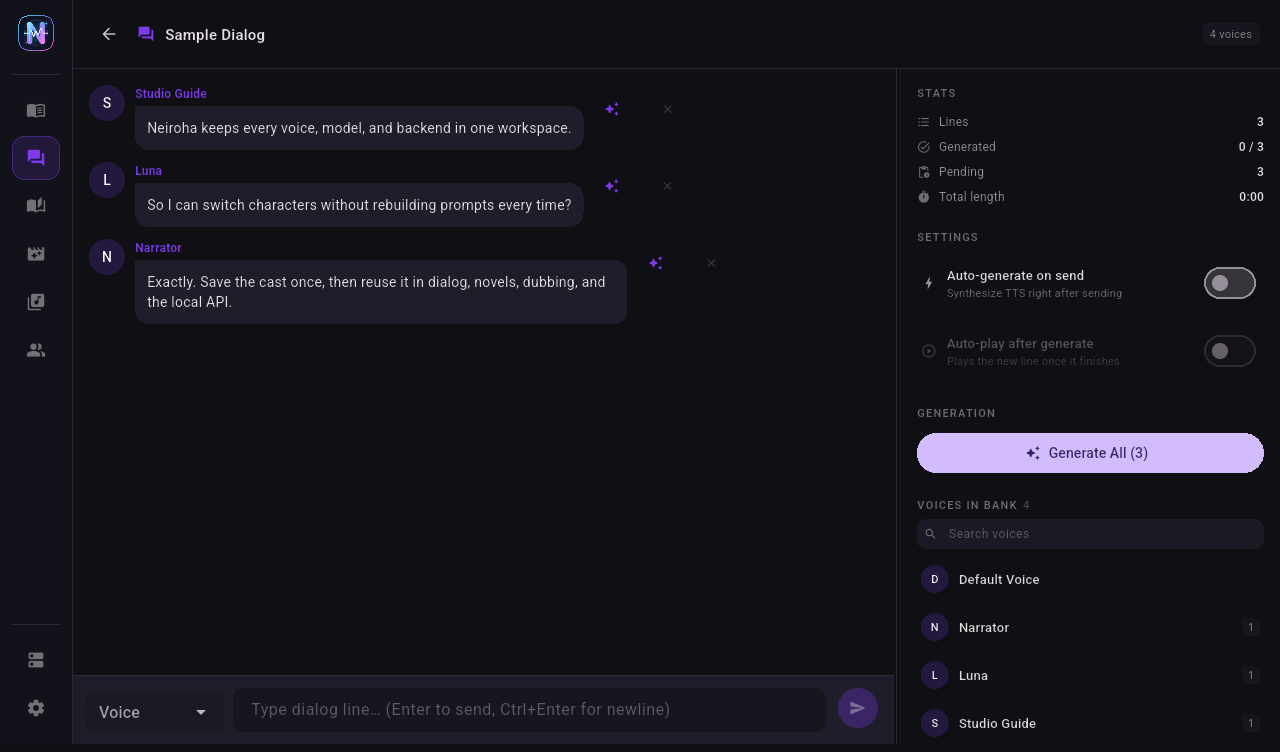
Use the input area at the bottom of the right panel:
- Select a character from the voice dropdown.
- Enter the line text.
- Click the send button.
Each line appears as a chat bubble, which makes it easier to read, edit, and verify by character.
Check Each Line
| Check | Why It Matters |
|---|---|
| Correct character | Synthesis uses the character bound to that line. |
| Final text | Editing text requires regenerating that line's audio. |
| Existing audio | Lines with audio can be played; lines without audio still need synthesis. |
Generate and Play
- Generate one line first to confirm the selected character works.
- Click Generate All to synthesize lines without audio.
- Failed synthesis shows an error state on the bubble.
- Click the play button on a bubble to preview that line.
- The waveform shows playback progress and current / total duration.
All lines use the shared TTS queue. Provider concurrency and rate limits therefore affect Dialogue TTS speed. When using cloud free quotas, generate in small batches first.
Multi-Character Script Tips
| Script Shape | Recommendation |
|---|---|
| Lines already have speaker prefixes | Copy line by line and manually select the matching character. |
| Short-video dialogue | Use one line per shot or subtitle cue. |
| Audio drama | Build the full voice bank first, then review lines by character. |
| Same character with different emotions | Create character variants, such as Narrator Calm and Narrator Tense. |
Failure Handling
| Symptom | Action |
|---|---|
| One line fails | Open the error, then reproduce it in Quick TTS. |
| Batch fails halfway | Lower provider concurrency, keep successful lines, and retry failed lines only. |
| Text changed but old audio still plays | Regenerate that line. |
| Character dropdown misses a role | Return to Voice Bank and add the character to the project's voice bank. |
Export Handling
After generation, collect audio files from the project output directory. For full-scene mixing, multi-track editing, silence spacing, or subtitle alignment, import the generated audio into an audio editor or video editor.